Best viewed on two screens, or side by side
Put the demo on one side and this walkthrough on the other so you can read a step and do it without flipping back and forth. Two monitors works best. On one screen, snap each window to half: click the demo window and press ⊞ + ←, then this window and press ⊞ + → (on Windows). The demo opens in a new tab when you click Launch the demo above.
How the demo works
The demo is a fully working copy of Operations Audit loaded with a completed sample assessment. There is no sign-in and nothing you do is saved to a real account, so click freely and experiment. You will see a red DEMO MODE bar across the top with a Reset button if you ever want a clean slate.
This app is a structured self-assessment of how your nonprofit actually runs. It scores each area, flags the gaps, and helps you turn the findings into an action plan and a board update.
Your task: take stock of the organization. The demo comes with an audit already filled in across the operational areas. We will read the results, find the weak spots, and let AI write the plan to fix them.
Read your Dashboard and scores
When the demo opens you land on the Dashboard. It shows your overall operations score and a breakdown by area, like governance, finance, programs, HR, and technology. The left sidebar holds AI Automations right under Dashboard, then an Audit & Reports group and a Learn group.
Do this: Read the score cards on the dashboard. Notice which areas score well and which are weak. You can review or change any answer to see the score update.
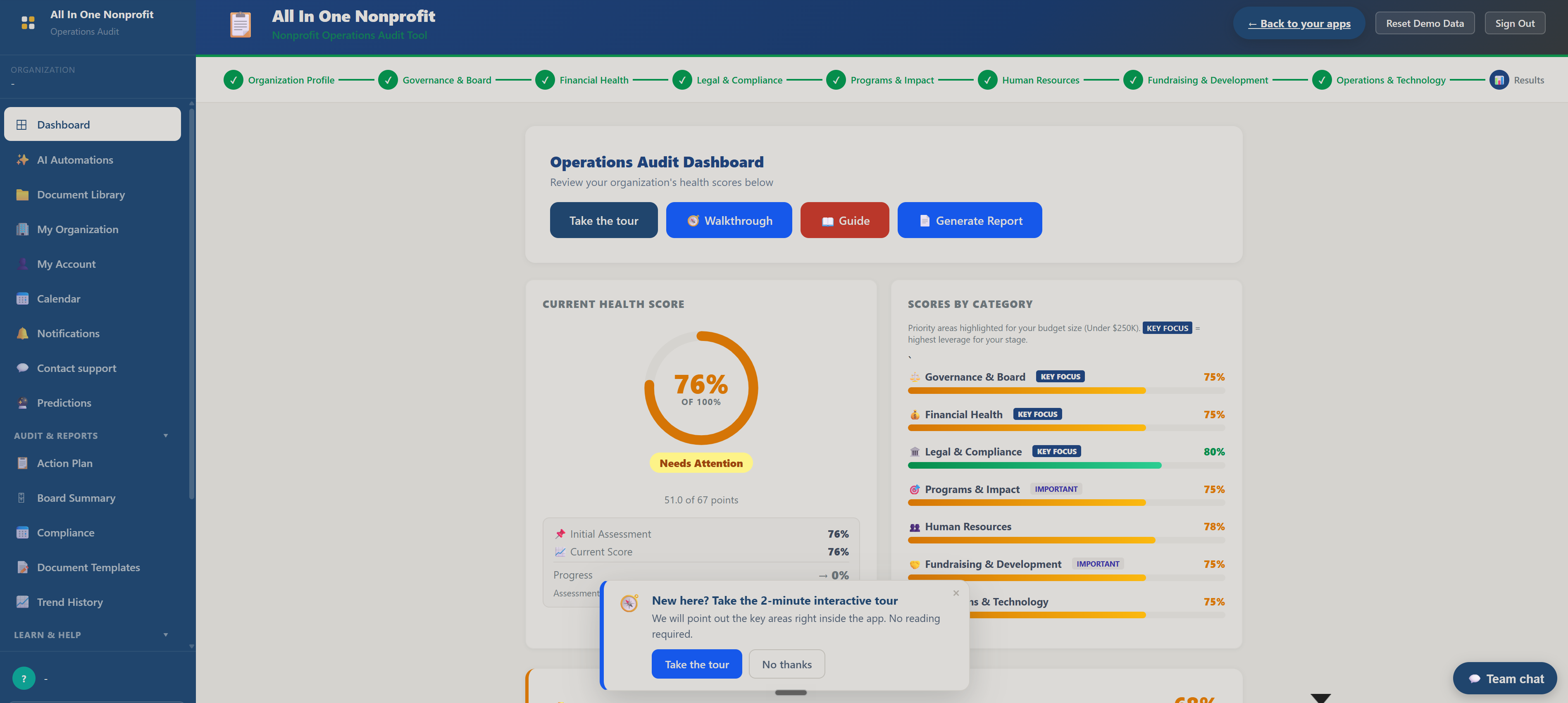
Why it matters: most nonprofits have never stepped back to assess how they run. A clear score by area shows you where attention will pay off most.
Find the red flags
The audit highlights red flags: the gaps that pose the most risk, like a missing financial control or an out-of-date policy. These are the items a board or funder would worry about most.
Do this: On the dashboard, look for the flagged items. These are the issues your improvement plan should tackle first.
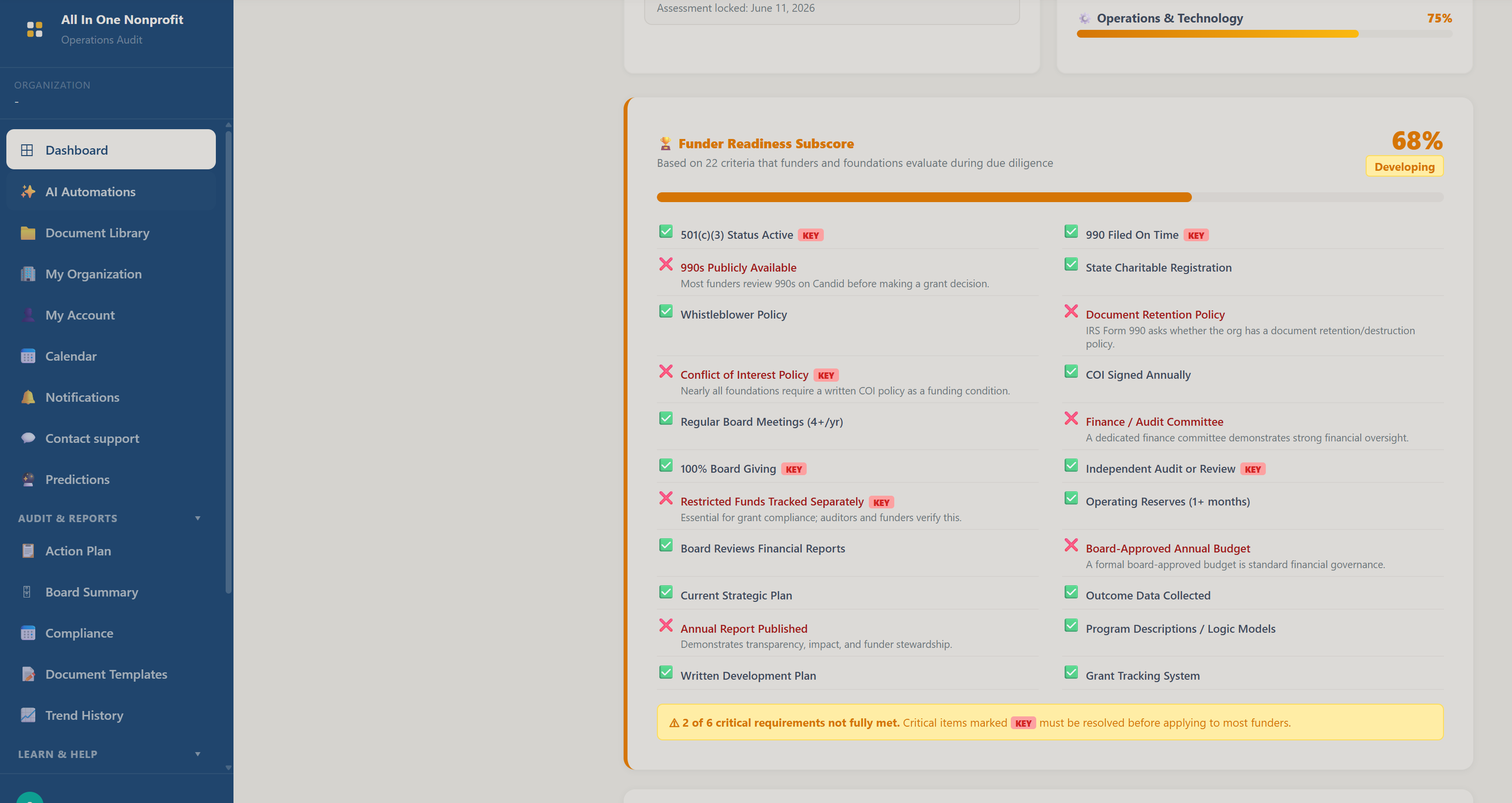
Why it matters: knowing your biggest risks lets you fix the few things that matter before they become real problems.
Let AI build your improvement plan
At the top of the sidebar, click AI Automations. The flagship Operations Improvement Plan reads your audit scores and red flags and writes a prioritized plan. Others draft a board operations summary, an implementation guide, an internal-controls checkup, an operations manual starter, an SOP, and a capacity statement. Cards are grouped by plan and searchable.
Do this: Open AI Automations, expand the Operations Improvement Plan card, and run it. Every output offers Copy, Word, Text, Print, and Email.
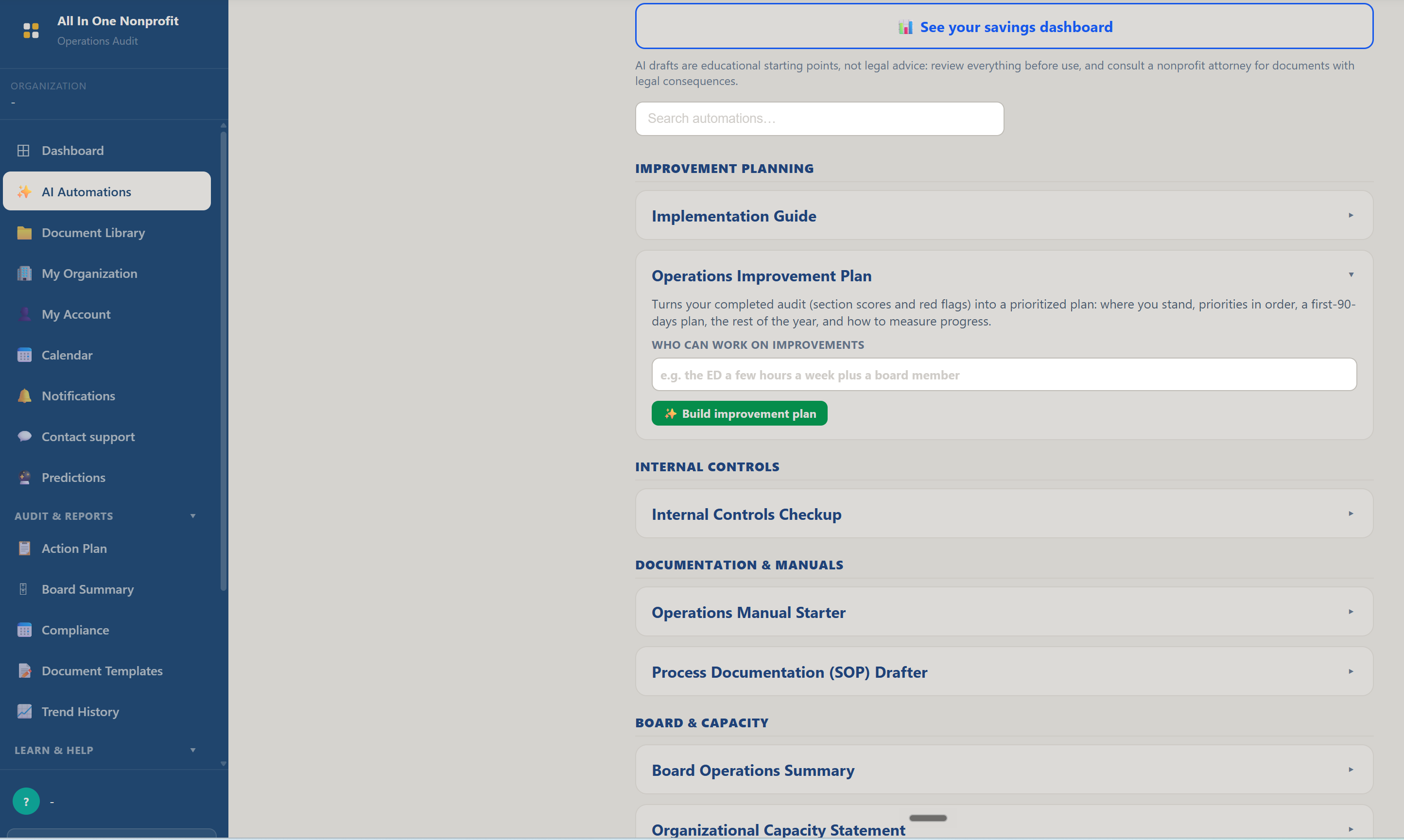
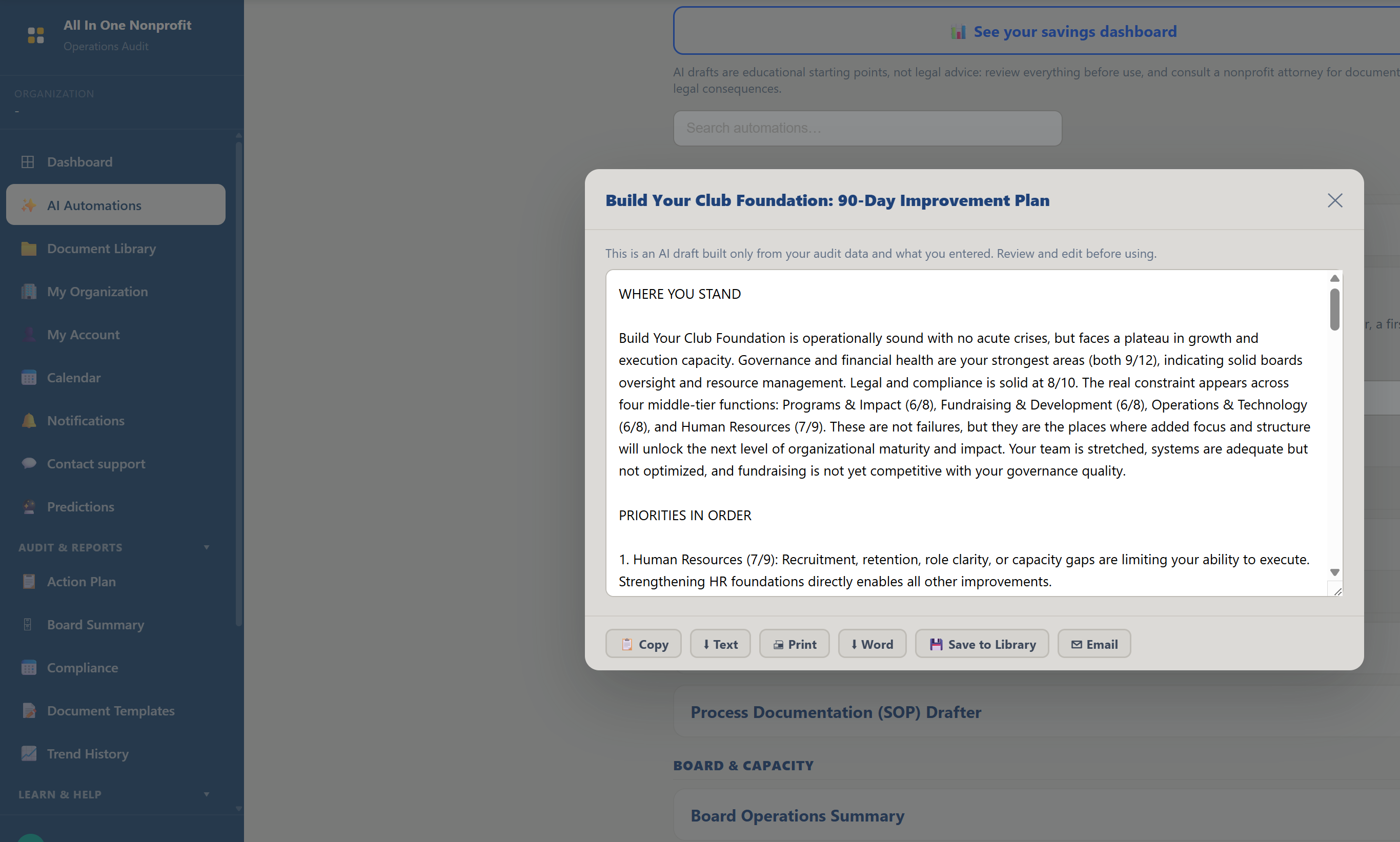
Why it matters: this turns a page of scores into a concrete, prioritized to-do list your team can actually work through.
Work the Action Plan
In the sidebar's Audit & Reports group, click Action Plan. This is where the improvements become tracked tasks with owners and timelines, so the audit leads to change instead of sitting in a drawer.
Do this: Open Action Plan and review the items tied to your weak areas. Mark one as in progress.
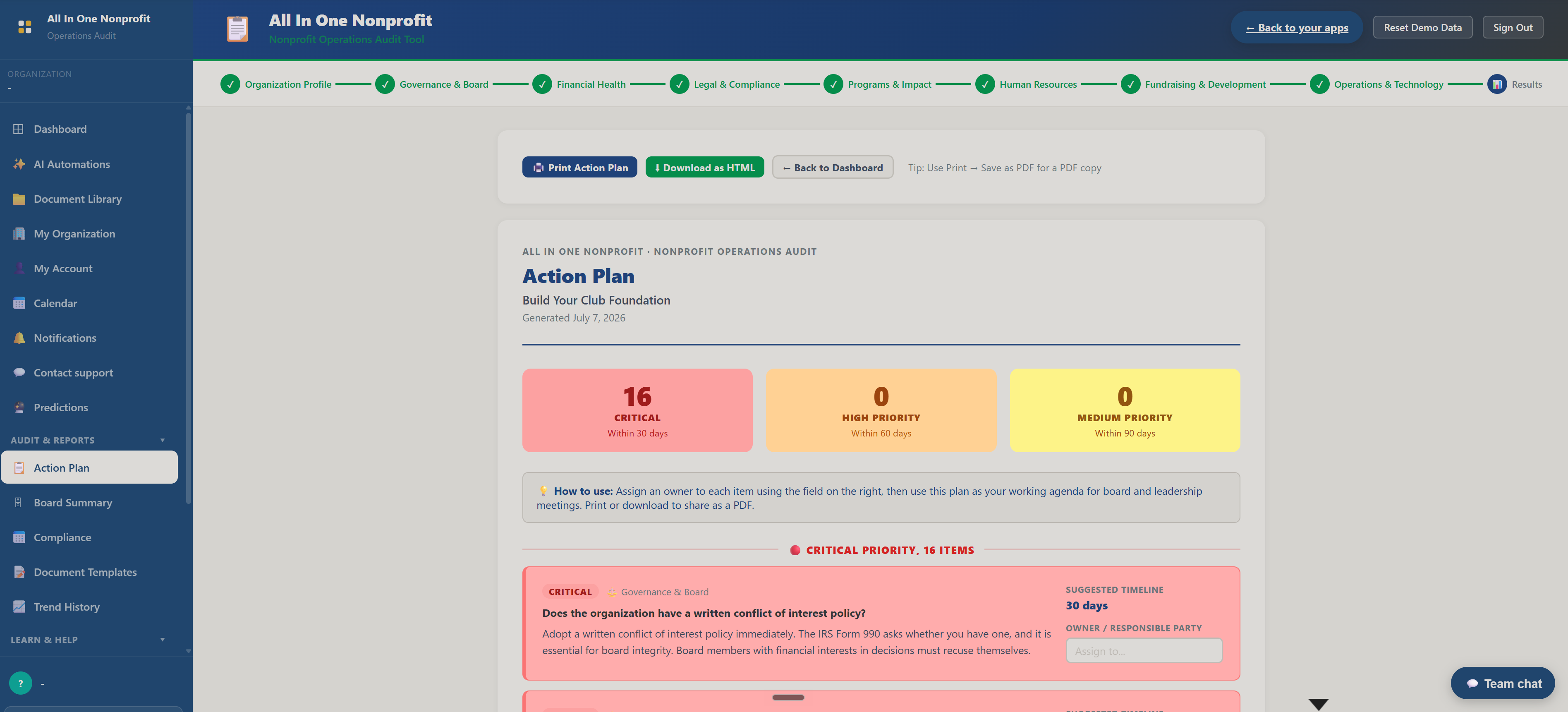
Why it matters: an assessment only helps if it drives action. Tracking the fixes is what actually strengthens the organization.
Report up with a Board Summary
Click Board Summary. Boards need the headline, not the raw audit. This produces a clean summary of where operations stand and what you are doing about it. Trend History shows how your scores change over time, and Compliance covers your operational compliance checks.
Do this: Open Board Summary to see the board-ready view, then open Trend History to see how repeat audits would track progress.
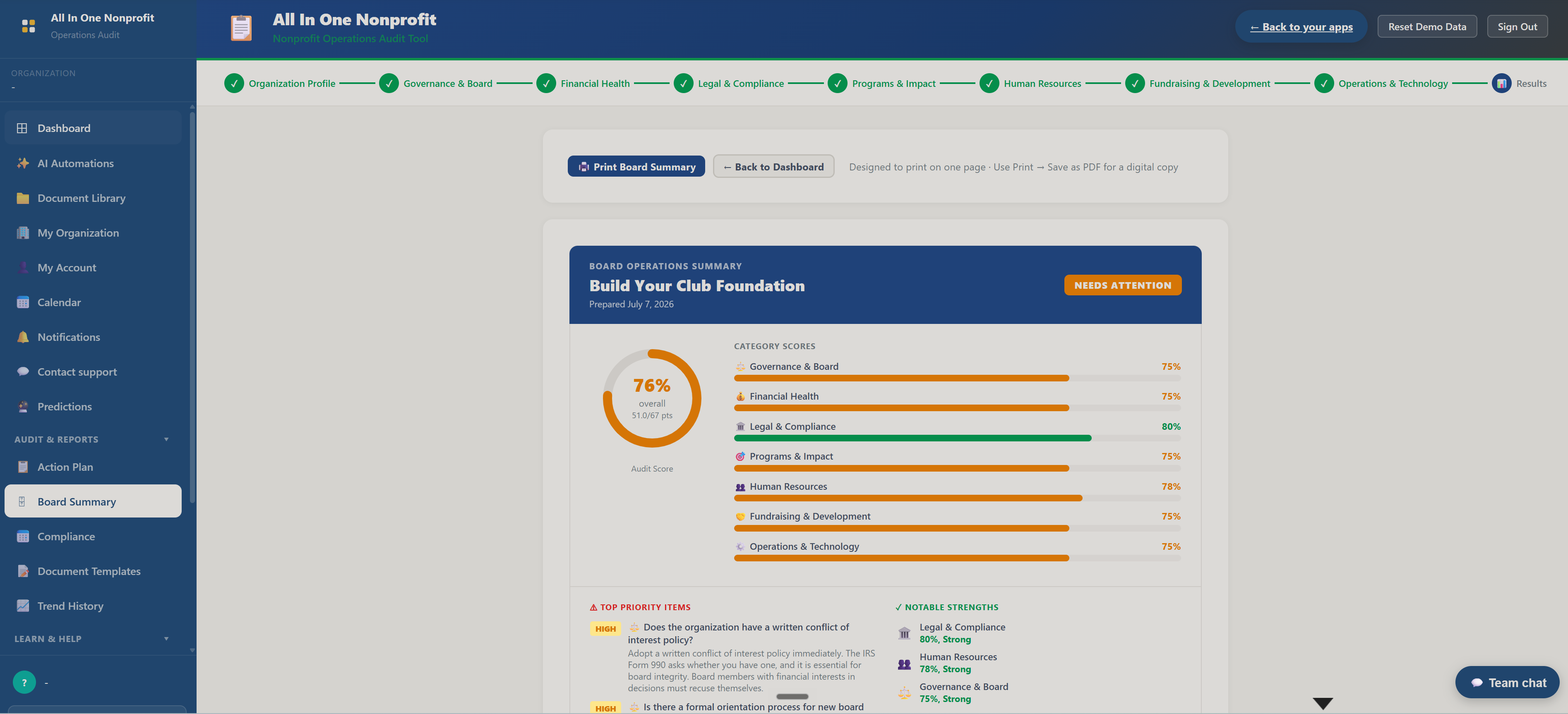
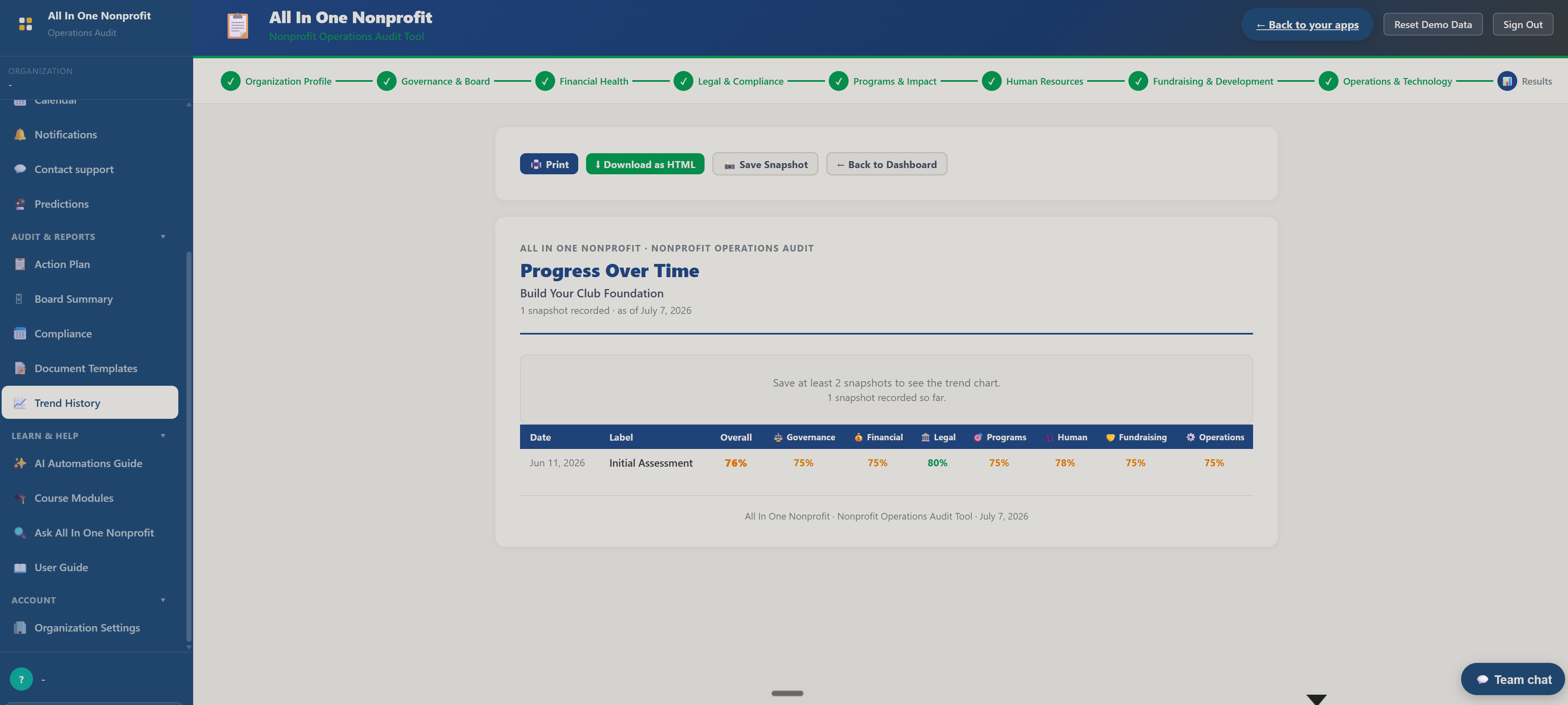
Why it matters: showing the board a clear assessment and a plan builds their confidence in how the organization is run.
Grab templates and keep learning
Click Document Templates for ready-to-use operational documents, and under the Learn group open Course Modules for a short course on nonprofit operations, each module with a quick quiz.
Do this: Open Document Templates to see what is available, then open Course Modules and start a lesson. Progress is tracked as you go.
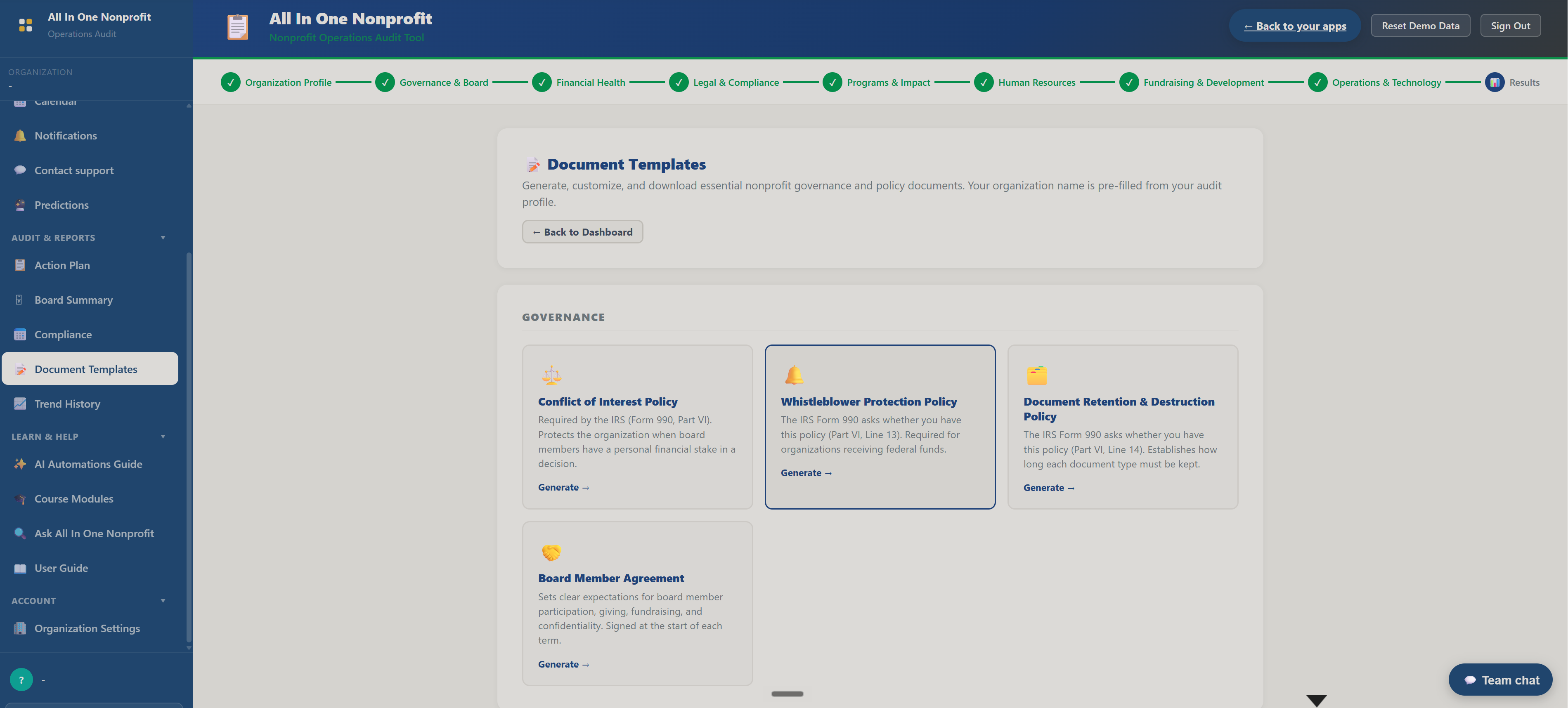
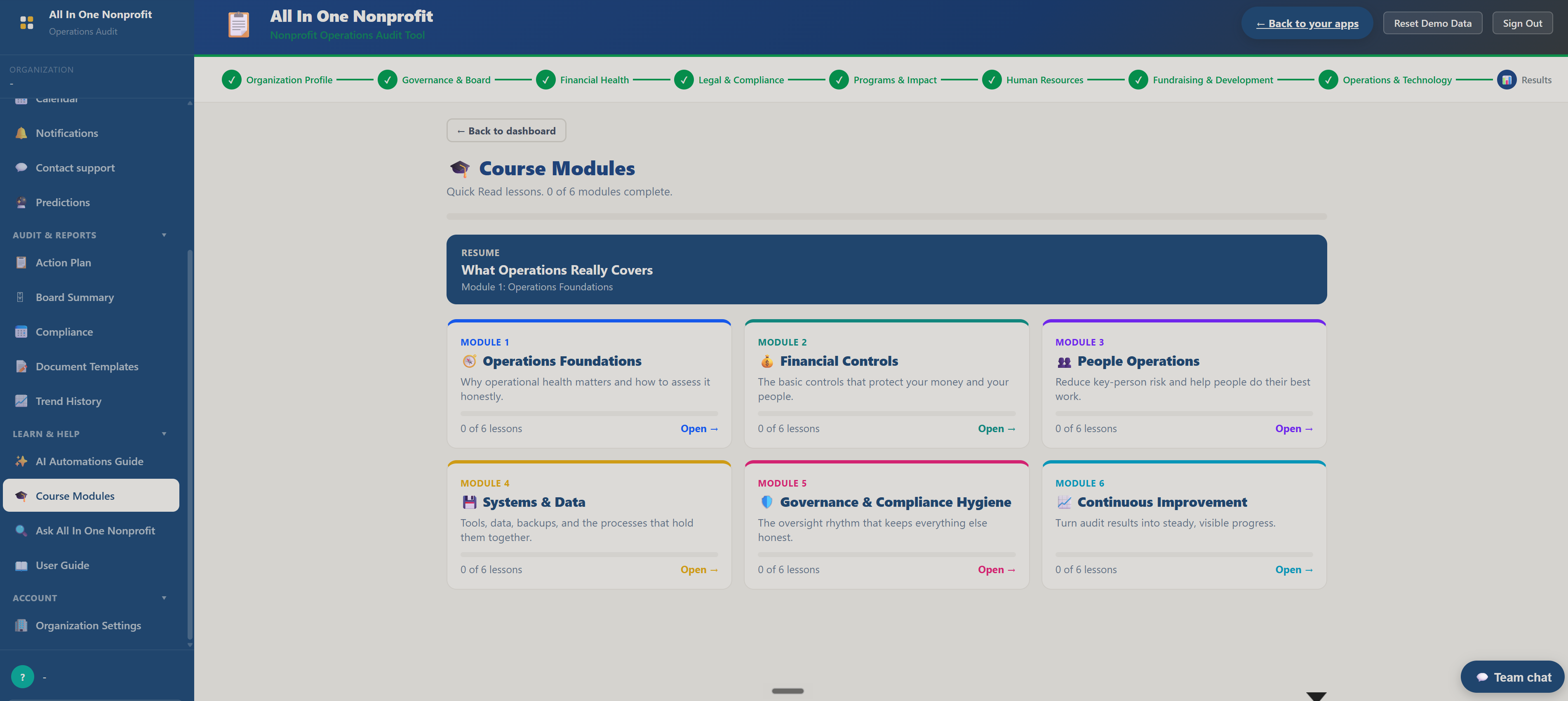
Why it matters: templates save you from starting blank, and the course builds the operational know-how behind every audit question.
Keep every document in your Document Library
Every All In One Nonprofit app shares one secure, organization-wide Document Library. The Document Library link sits in the sidebar just under Dashboard and opens the Library in a new tab, where your whole team can find any file you have saved.
Do this: Find Document Library in the sidebar. Whenever you generate an operations improvement plan or board summary in this app, use the Save to Library button on the export toolbar. The Library keeps every version, lets you archive or restore files, and stays private to your organization.
Why it matters: one shared home for your documents means nothing lives only on one person's computer, and the current version is always easy to find.
Get help anytime with Contact support
If you ever get stuck, the Contact support link in the sidebar opens a help request tied to your account. You describe what you need, send it, and our team replies by email, and you can follow the whole conversation from the support page.
Do this: Click Contact support in the sidebar to see the request form. Signed in to your real account, you can send a message and then track replies and status right there.
Why it matters: real help from real people is part of the product, so you are never left staring at a blank screen on your own.
From assessment to action
You just read an operations assessment, found the red flags, and let AI turn them into an improvement plan and a board summary, using the same tools you would use to strengthen your real organization. Explore any other part of the demo, or reset it and try it your own way.